Claude Code Usage Status Line
Monitor your Claude Code & Z.ai GLM consumption in real-time
directly in your terminal.
Free, open source, zero configuration.
100% Freefor WindowsLinuxmacOS
New compact format
More info, less space. The status line now only displays the current folder name (the leaf of the path) and replaces textual labels with compact Unicode icons.
Icons instead of labels
- ⟗ — Session (sliding window of 5 hours)
- Σ — All models combined (7 days)
- F — Fable only (Claude Max)
- Ctx — Current context window
Condensed directory
Instead of displaying ~/My Projects/Brol, the status line now only shows Brol. The full path is rarely useful in a terminal already positioned in the project — the leaf is enough to identify, and frees up space for metrics.
A prefix ~ appears before a value (e.g., ~5%) when the data is stale — the cache has expired but the API is in backoff 429 or unavailable.
Status line at the bottom of Claude Code
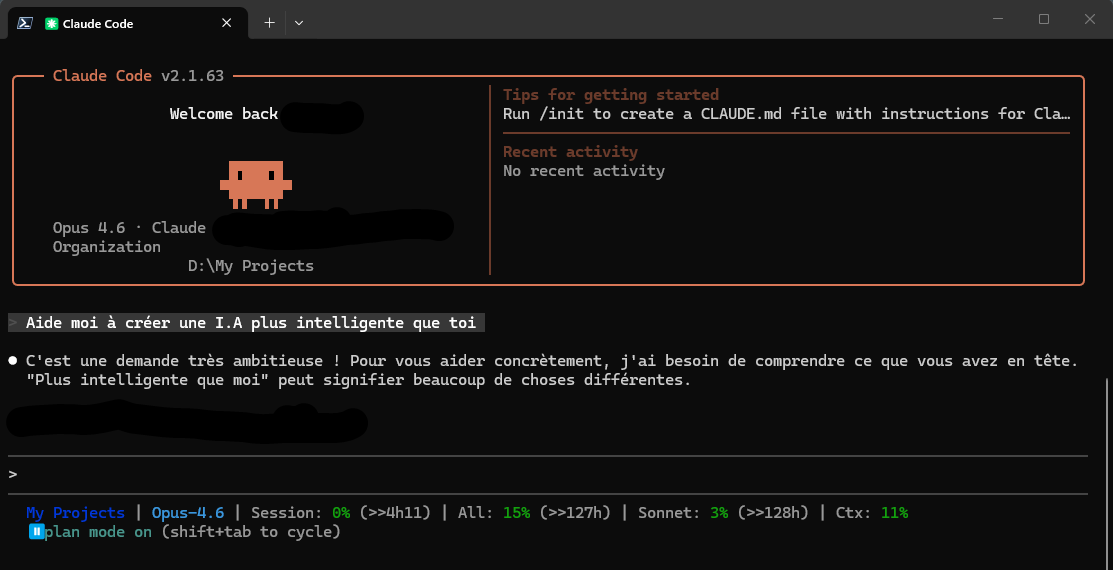
Everything you need, at a glance
A status line. All your Claude & z.ai usage data.
Auto-detected project
Displays the name of the current directory (leaf of the path). You always know which project you are working on, without cluttering the line with the full path.
Active model
See which model is being used — Opus, Sonnet, Haiku, or GLM — directly in the status bar. The provider is automatically detected.
Usage percentages
Session, all models, Sonnet and Opus separated with colored indicators: green, yellow, red.
Countdown
Know exactly when your limits reset. The countdown ↻ appears next to each relevant metric.
Context Window
Monitor your context window usage to avoid hitting the limit in the middle of a conversation.
z.ai / GLM Support
New: display your z.ai account balance (Bal: 9.88$) with automatic conversion to your currency of choice (EUR, GBP, CAD…).
Outdated Data Indicator
A prefix ~ before a value indicates that the cache has expired but the API is unavailable (backoff 429). You always know what you are reading.
Smart Cache & Backoff
1-minute cache per provider to spare the APIs. In case of 429, automatic backoff of 5 minutes to avoid blowing the rate limits.
Zero Configuration (Claude)
Run the installer and that's it. Reads your Claude credentials automatically from ~/.claude/.credentials.json (and the Keychain on macOS).
What the Status Line displays according to your subscription
The Status Line automatically adapts to your plan and displays the relevant metrics.
z.ai Configuration (GLM models)
If you are using Claude Code with a GLM model (glm-5.1, etc.) via z.ai, a little additional configuration is necessary to display your balance.
ZAI_API_KEY) — it requires a web session JWT instead. And the login endpoint is protected by a captcha TianCaptcha (Aliyun) that blocks any automation (Selenium, Playwright, etc.). Therefore, the only reliable method is to copy the token from your real browser.Step 1: Retrieve the JWT
- Open z.ai/manage-apikey/billing in your usual browser
- Log in (and solve the captcha if prompted)
- Open DevTools with F12, go to the Network tab
- Refresh the page with F5
- Click on the request named
accountBalance - In Headers, copy the value of
Authorizationwithout the prefixBearer(the token starts witheyJhbGciOiJIUzUxMiJ9)
Step 2: Save the JWT
A companion binary ClaudeUsageStatusline.ZaiRefresh is provided with the installation. It validates the token format and writes it to ~/.claude/.zai-credentials.json.
Windows:
&
  "$env:LOCALAPPDATA\ClaudeUsageStatusLine\ClaudeUsageStatusline.ZaiRefresh.exe"
Linux / macOS :
~/.local/bin/ClaudeUsageStatusline.ZaiRefreshStep 3 (optional) : display currency
The balance is returned in USD by default. To display it in EUR (or any other currency), edit appsettings.json next to the executable :
{
    "Zai": {
      "NativeCurrency": "USD",
      "DisplayCurrency": "EUR",
      "ExchangeRateCacheHours": 24
    }
  }
The rates are retrieved once a day from a free API and cached locally.
When to refresh the JWT ?
The session JWT does not have an explicit expiration date — its lifespan is controlled by the z.ai servers. It will eventually be invalidated after a period of inactivity or an explicit logout.
Signs that it needs to be renewed :
- The statusline displays
Bal: error - The prefix
~Bal:(stale data) persists - The logs contain
401 Unauthorized
Just restart ZaiRefresh and paste a fresh JWT.
Aucun commentaire pour le moment.